
Making the switch from a PC to a Mac can be an exciting transition, but the prospect of transferring all your files and data may seem daunting. Fortunately, Apple provides a user-friendly solution to ease this process — Windows Migration Assistant.
Effortlessly import data from PC to Mac with Windows Migration Assistant

Why consider a solid-state drive (SSD) for your Mac

In personal computing, the debate between traditional hard disk drives (HDDs) and solid-state drives (SSDs) has long been a contentious one. While HDDs have historically held sway due to their lower cost per gigabyte, SSDs have emerged as the clear frontrunner in terms of overall performance, reliability, and user experience.
What is iPad jailbreaking and why is it a bad idea?

Most iPad users are satisfied with their devices, but some wish to install apps unavailable on the App Store or tweak their device's performance beyond Apple's limits. To achieve this, they resort to jailbreaking, which can have unforeseen and unfortunate consequences.
Easy ways to lock your Mac when you’re away from keyboard

It’s a security risk to leave your Mac unlocked when you're away from your desk. Anyone could simply use it to access your accounts, files, or personal information. To protect your Mac, you should lock it whenever it’s not in use. If you’re unsure of how to lock your device, or if you’re looking for the most efficient way to lock it, read on.
How to keep your Mac safe
Many users believe that Mac laptops and desktops are more secure than Windows devices. However, Macs are still susceptible to cyberthreats, and they're becoming more so as cybercriminals continue to search for new ways to exploit vulnerabilities in Mac devices.
It’s about time you use your Mac’s Time Machine
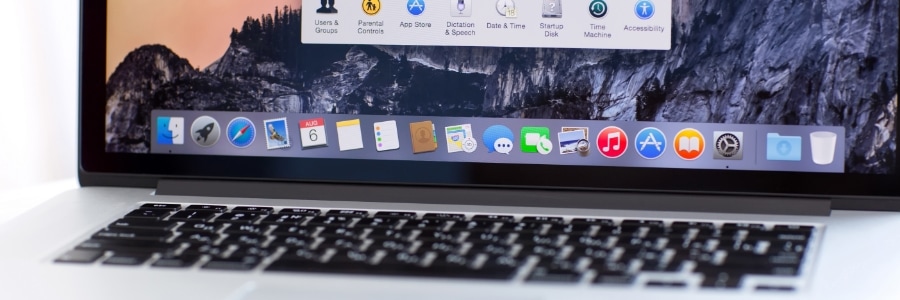
If you're a Mac user, you probably already know that macOS boasts a remarkable built-in feature called Time Machine, which helps easily recover deleted files, emails, or media. If you're not using it, it's about time that you do. This reliable backup mechanism maintains an accurate, up-to-date record of your Mac's contents.
Protect your Mac from ransomware with these tips

Businesses and individuals alike rely on Macs for tasks that require a high level of security, such as online banking, shopping, and storing important files. So what would happen if your Mac was infected with ransomware? In this blog post, we will provide practical tips to protect your Mac against ransomware attacks.
Beware: Macs aren’t immune to malware

Macs are known to be pretty secure as they don't seem to get viruses and malware as easily as Windows computers do. But the truth is, no computer is completely immune to malicious software. So how can you tell if your Mac has been infected with malware? Look out for these signs.
Your guide to connecting an external monitor to a Mac

Whether you want to increase the amount of screen space on your iMac, turn your MacBook Pro into a desktop, or simply enjoy the look of dual screens, connecting an external monitor to any Mac is a quick and easy process. Just follow these steps.
Check the ports on your Mac and monitor
Before connecting your Mac to a monitor, take note of the ports each device has and whether you need any adapters to make them compatible.
Keep your iPhone text messages private with these tips

If you're a business owner who relies on text messages to communicate with employees, clients, or customers, it's essential to ensure the privacy and security of your messages. Unfortunately, there are many ways for others to go through your texts if they have access to your mobile phone.