
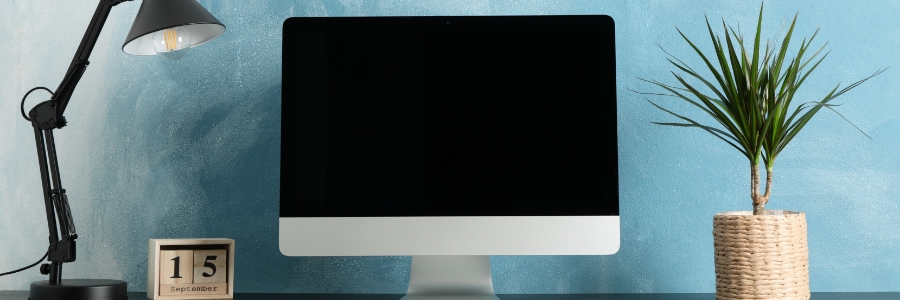
Your guide to connecting an external monitor to a Mac

Whether you want to increase the amount of screen space on your iMac, turn your MacBook Pro into a desktop, or simply enjoy the look of dual screens, connecting an external monitor to any Mac is a quick and easy process. Just follow these steps.

Check the ports on your Mac and monitor

Before connecting your Mac to a monitor, take note of the ports each device has and whether you need any adapters to make them compatible.

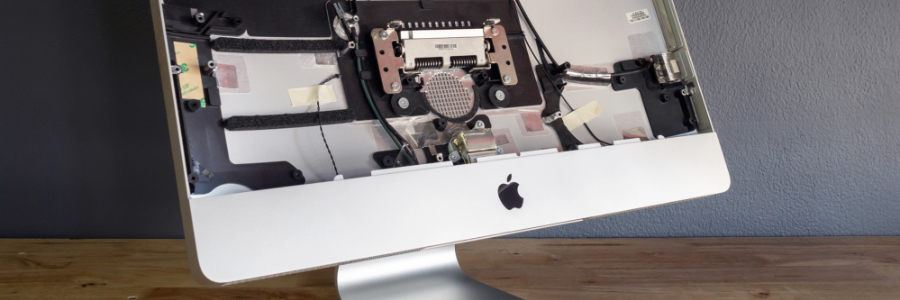
How to use external monitors with Mac computers

It’s much more convenient to work when you have two monitors. In case you’re using a Mac computer (a MacBook Pro, MacBook Air, or Mac mini) and want to hook an external monitor to it, we’ve got a few tips for you.

First, check which displays your Mac device supports by doing the following:

Click the Apple Menu (located on the left-hand side of the screen) then click About This Mac.

Moving from Windows to Mac? Here’s how

Looking for a quicker and more efficient way to move all the emails, pictures, and other important data from your Windows PC to your Mac? Through Apple’s nifty macOS Mojave Migration Assistant, transferring them will be a breeze. Read on for a handy step-by-step guide on how to start your migration process.